 Kimber
Install guide
IPTV player for Firestick: install KimberPlay in two minutes
The Fire TV Stick is the most popular IPTV device in the world, and KimberPlay was built and tested on real Fire TV hardware from day one. Here is the complete install, from a factory-fresh Stick to your own playlist playing — no computer needed.
Step 1 — Allow apps from outside the Appstore
On the Fire TV: Settings → My Fire TV → Developer Options → Install unknown apps. If Developer Options is hidden, go to Settings → My Fire TV → About, highlight the device name, and click it seven times. This is a standard Amazon setting, not a hack — it simply lets you choose where your apps come from.
Step 2 — Get the Downloader app
Search the Amazon Appstore for Downloader (the orange icon, by AFTVnews) and install it. In Step 1’s “Install unknown apps” list, switch Downloader on.
Step 3 — Download KimberPlay
Open Downloader and enter this address: kimberplay.com/apk. The APK downloads and the installer opens — choose Install, then Open. Every build is signed and the site publishes its checksum, so what you install is what we shipped.
Step 4 — Load your playlist
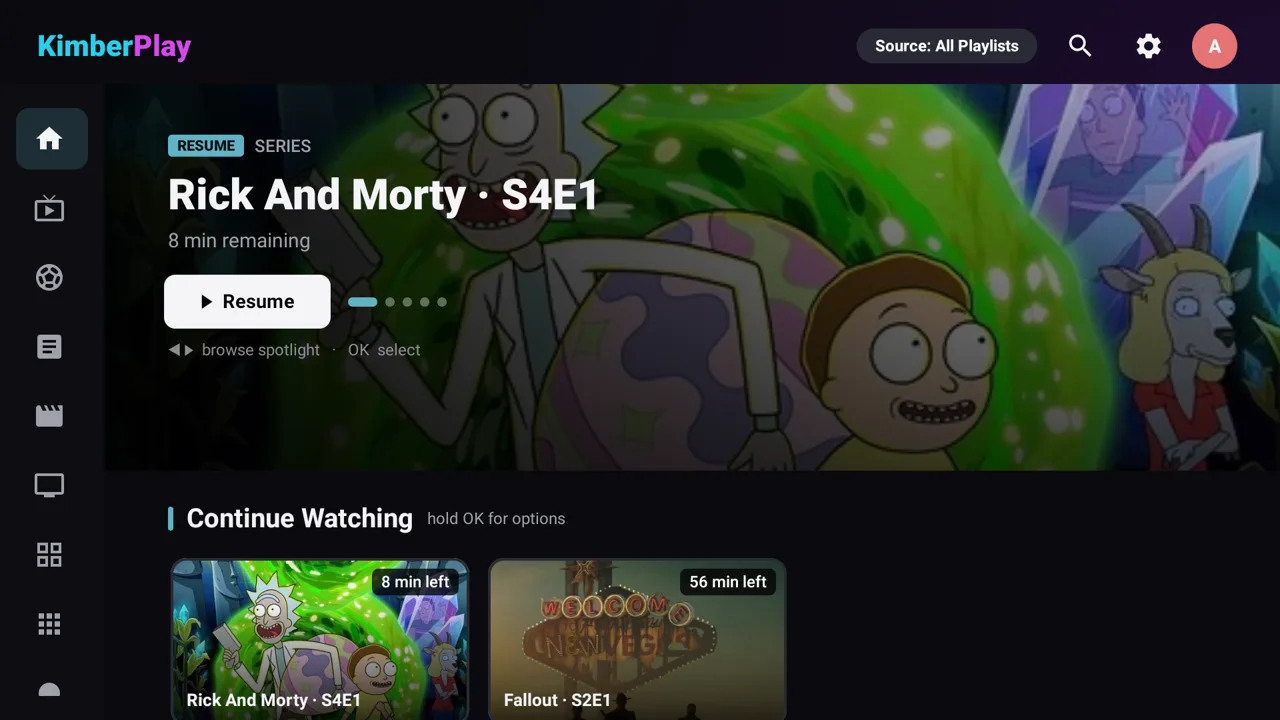
KimberPlay asks for the one thing it needs: your playlist. Paste the M3U URL from your provider, or sign in with your Xtream server, username, and password. The engine ingests the playlist — grouping live channels, deduplicating movies and series, attaching the program guide — and the home screen fills with your service.
After the install
- Updates come to you. When a new version ships, KimberPlay offers it on launch — one click, and your library and settings carry forward untouched.
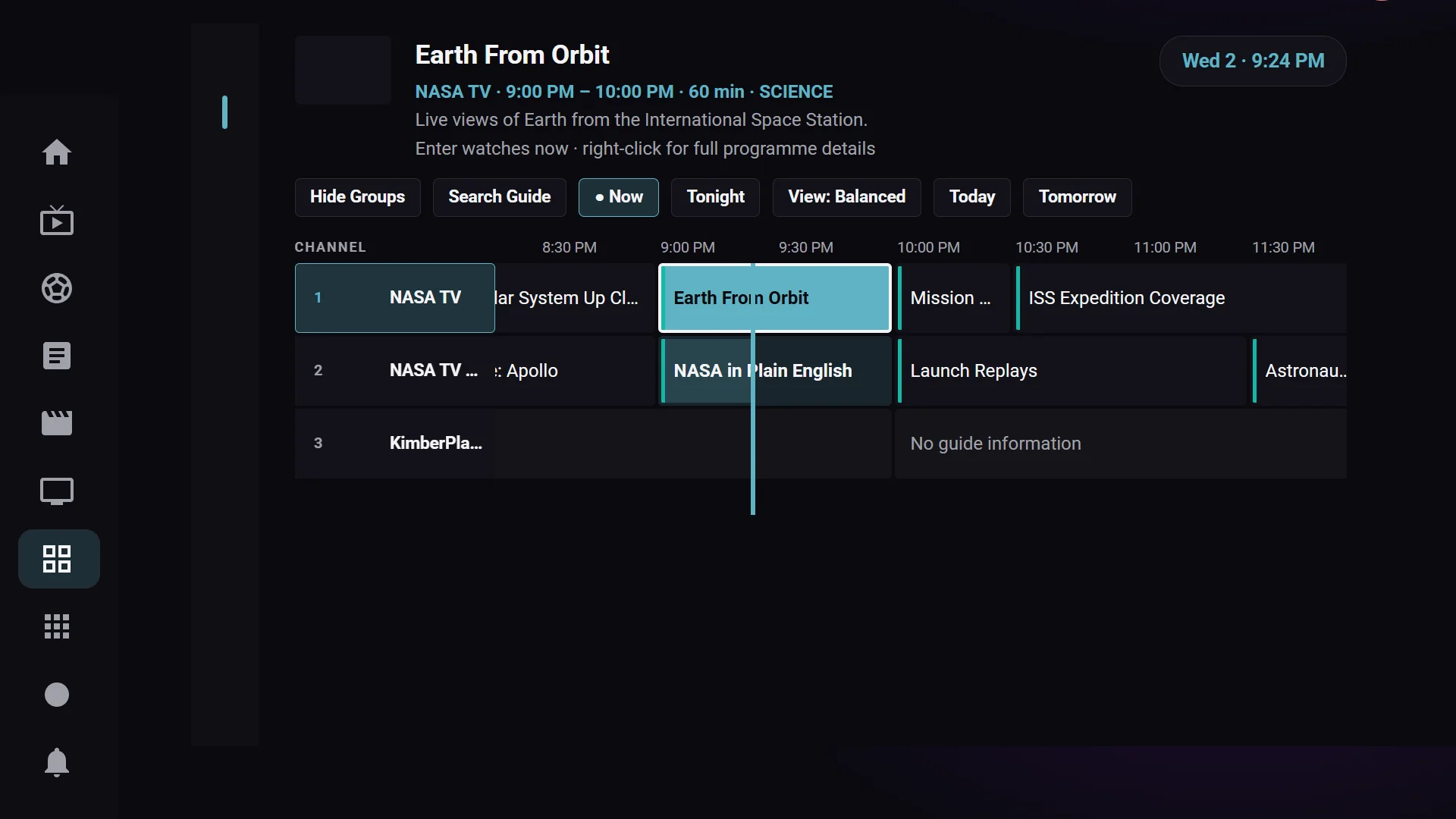
- The guide fills itself. Channels with missing guide ids get matched by name automatically; anything left can be assigned by hand from the guide.
- Old Sticks are fine. KimberPlay supports Fire OS back to the earliest 2015-era Sticks, and the interface is built for the Fire TV remote specifically.
What KimberPlay is not
KimberPlay ships no channels and no content — it plays the playlist you already have from your own provider. If you were promised an app that comes with “everything included,” that is not us, on purpose. Player software only.
New to IPTV players in general? Start with what an IPTV player is. Coming from another app? See the KimberPlay vs TiviMate comparison or the FAQ.